

Tracking signature requests
The Signatures page shows where every request stands, and lets you remind, correct or cancel.
Choose Signatures in the sidebar. Admins see every request in the workspace; everyone else sees the requests they sent. A ✓ follows each signer who has signed.
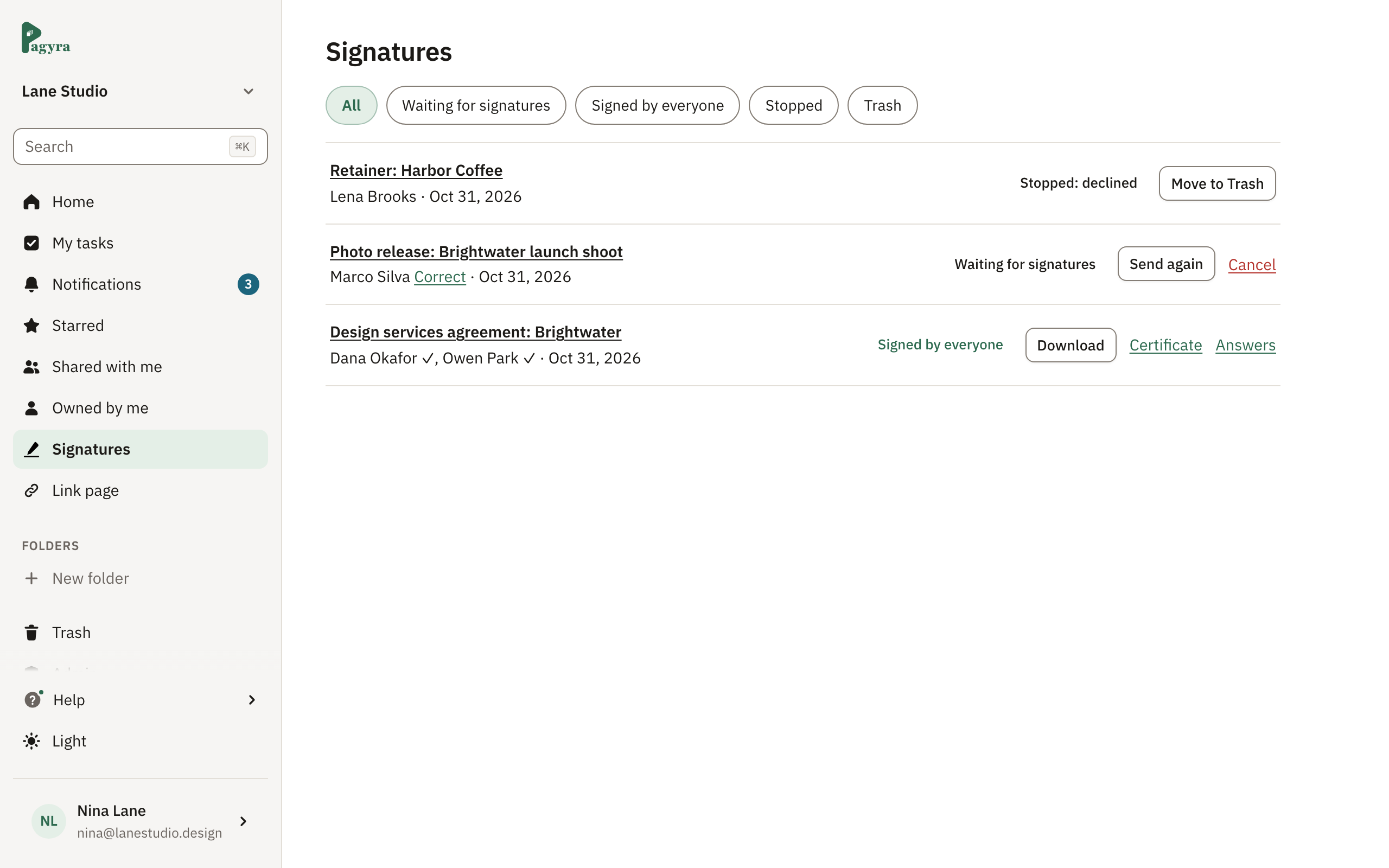
What each status means
- Waiting for signatures: sent, and not everyone has signed yet.
- Signed by everyone: done. The signed copy and certificate are ready.
- Stopped: declined: a signer declined to sign.
- Cancelled: the request was cancelled before everyone signed.
- Expired: it wasn’t finished before its expiry date.
- Signed by you: you signed your own line, with no one else to sign.
Use the filters at the top to show only some of them, and search by document or person when there are many.
While a request waits
- Send again: emails everyone whose turn it is again.
- Correct, beside a signer: fix their name or email, then Save and send. Their old link stops working.
- Cancel: stops the request. Everyone is told.
You get a notification in Notifications when someone signs, when everyone has signed, and if someone declines.
Once it’s signed
Choose Download for the signed document and Certificate for the certificate of completion. Answers shows what signers filled in, which you can download as a CSV file.
Requests that stopped can be moved to Trash, and restored from there.
Didn’t answer your question? Email support@pagyra.com.