

Signing a document you were sent
Open the email, follow the guide to each spot, and sign by typing, drawing or uploading your signature. No account needed.
You don’t need a Pagyra account, or a paid plan, to sign a document someone sent you. It works on a phone as well as a computer.
- Open the email from Pagyra and choose Review document.
- Read the document. When you are ready, choose Start. Pagyra takes you to the first place marked for you, and Next takes you to each one after it.
- At Sign here, adopt your signature (see below). At Initial here, add your initials. Fill in anything else the document asks for.
- Choose Finish. Selecting Finish signs the document.
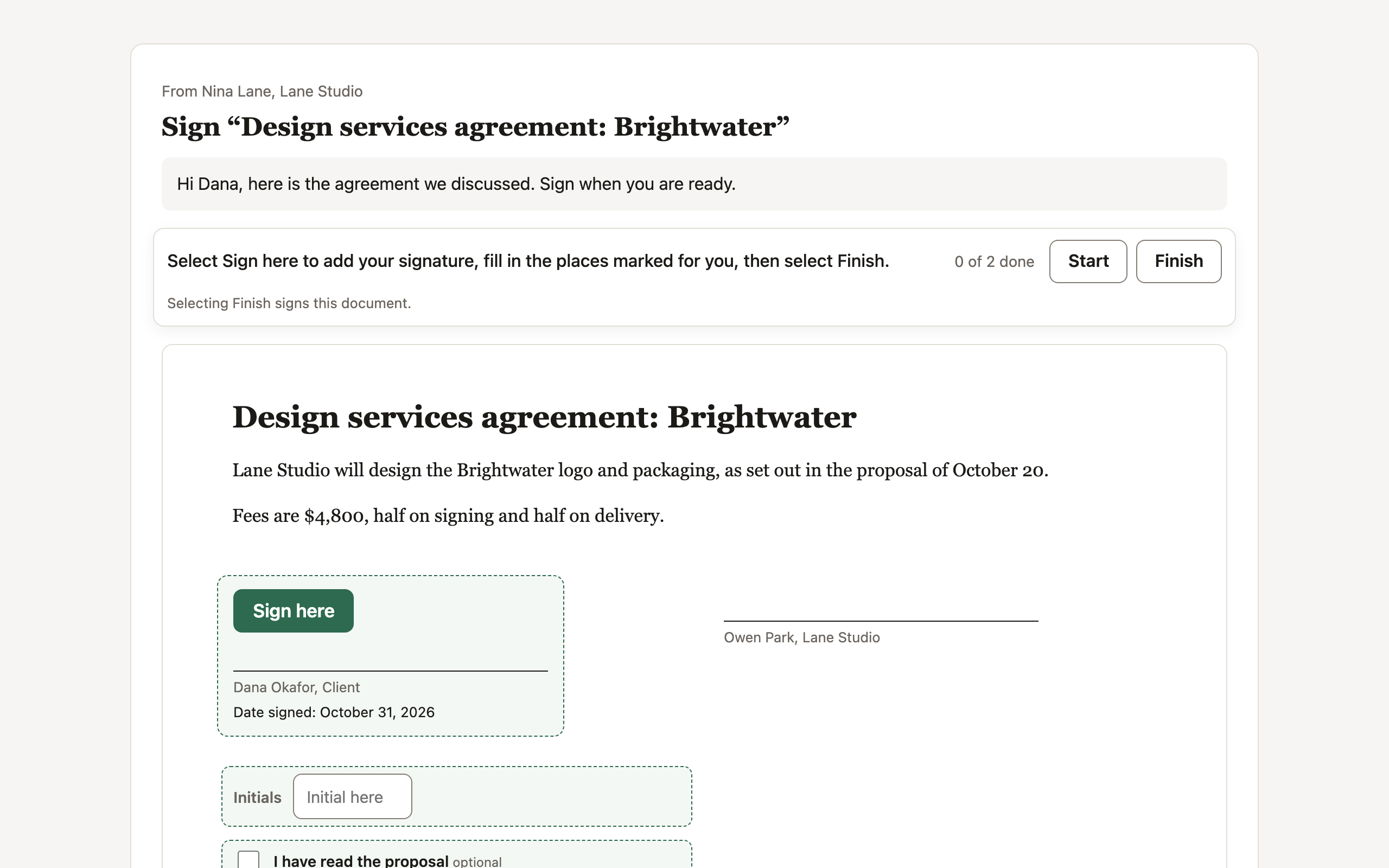
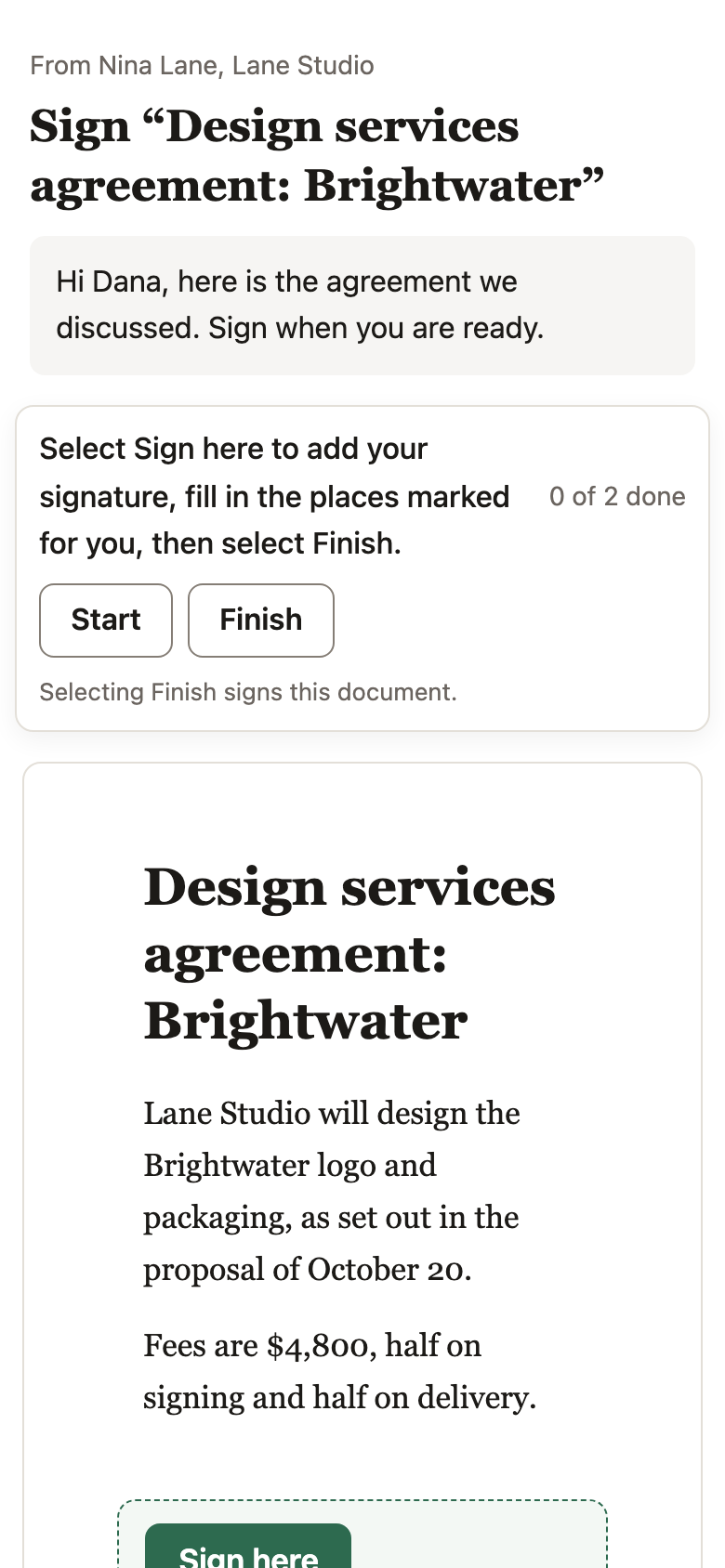
The bar at the top shows how many of the places marked for you are done.
Adopt your signature
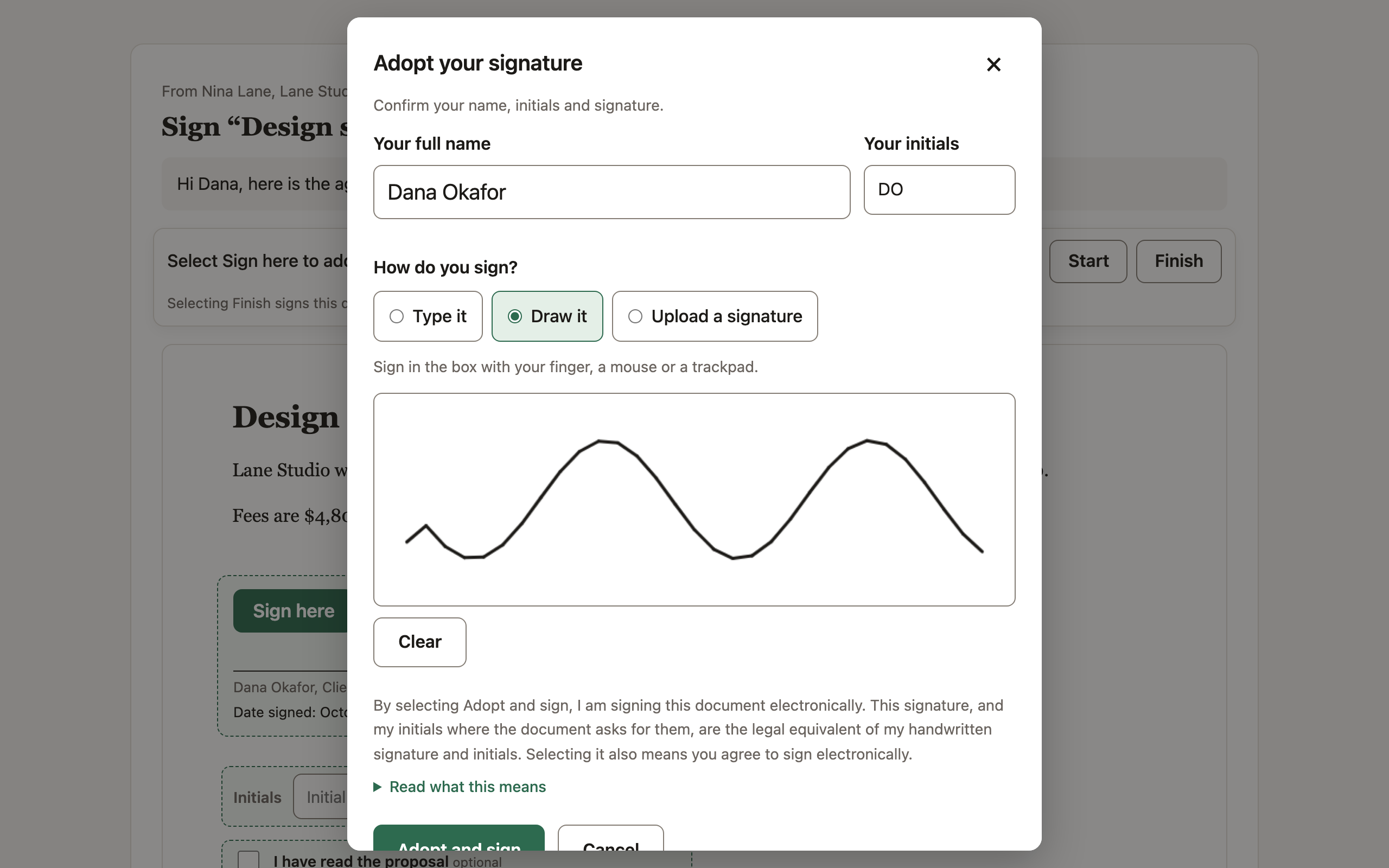
Type your full name and your initials, then choose how you sign:
- Type it: Pagyra writes your name as a signature.
- Draw it: sign in the box with your finger, a mouse or a trackpad.
- Upload a signature: a photo or scan of your signature on white paper, up to 2 MB.
Then choose Adopt and sign. Doing so also means you agree to sign electronically. Read what this means explains it before you agree.
Access codes
If the sender added an access code, Pagyra asks for it first. They give it to you separately, by phone for example. After 5 wrong tries, the sender has to send a new request.
When you’re done
Once everyone has signed, you get an email with the signed document and its certificate of completion. If others still have to sign, Pagyra tells you so.
Download, decline or withdraw
At the foot of the page you can Download the document (PDF) to read it first, Decline to sign, or Withdraw consent to sign electronically. If you decline, you can give a reason. The sender is told, and the request stops for everyone.
Didn’t answer your question? Email support@pagyra.com.