

Uploading, copying and moving documents
Bring in Word, PDF and Markdown files, make copies, and move documents between folders.
Upload files as documents
Choose Upload on Home or in a folder, or drop files onto the list. Pagyra reads Word (.docx), PDF, Google Docs downloaded as Word, Notion exports (.zip), Markdown, text, HTML and CSV files, and on Pro screenplays from Fountain or Final Draft. Each file becomes a document, and a zip can hold many. Headings, lists, tables, bold and italic, links and pictures come across.
From Notion, open the page, choose the three dots at the top right, then Export. Choose HTML, turn on Include subpages, and upload the zip: HTML keeps the page’s columns, its cover picture and icon, and where each database sits. Markdown & CSV works too, without the columns or the cover. Each page becomes a document in a new folder, and its subpages become pages inside it. Callouts and toggles stay callouts and toggles. A database becomes a table with its pages listed under it, a board when it is grouped by status (each row a card), or a gallery when its pages have pictures. If your plan has no room for another board, it comes in as a table. From Google Docs, choose File, Download, Microsoft Word (.docx), and upload that.
A PDF comes in with its headings, paragraphs, lists and links, and text laid out in columns becomes a table. A scanned PDF, made of pictures of pages, has no text to read: open it in an app that can recognise text, save it, and upload that. A PDF locked with a password needs saving as a copy without the password first. Pictures that are only linked from the web are left out.
In an empty document, Bring in a file does the same thing inside the document you are in.
Make a copy
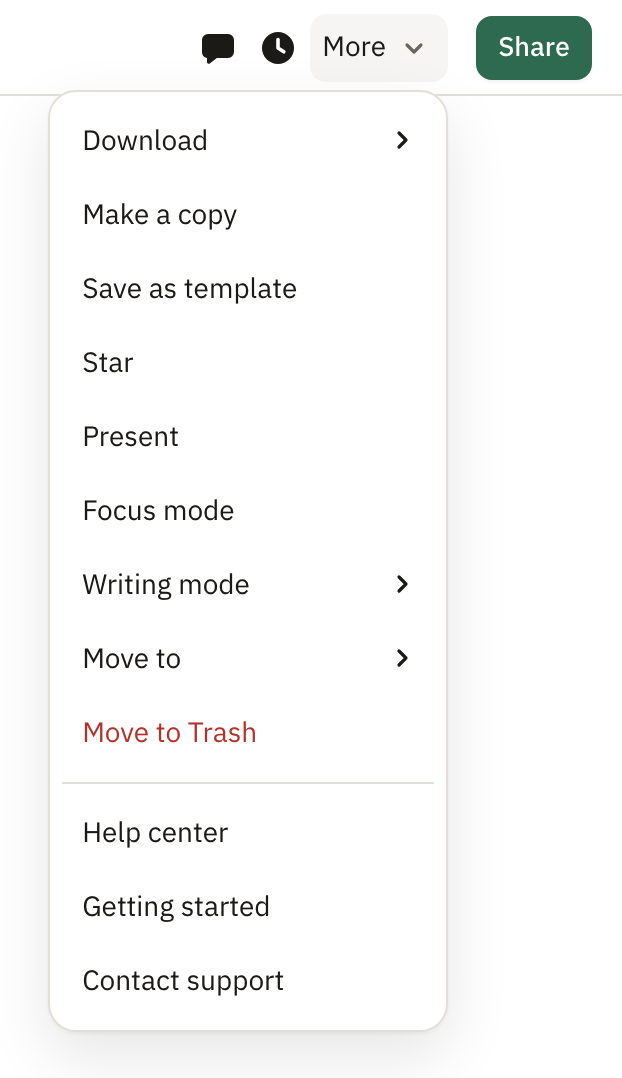
Open the row menu on Home, or More in a document, and choose Make a copy. The copy has the same content, sits in the same folder and is named “(copy)”. It is yours alone: comments, history and sharing are not copied.
Move a document
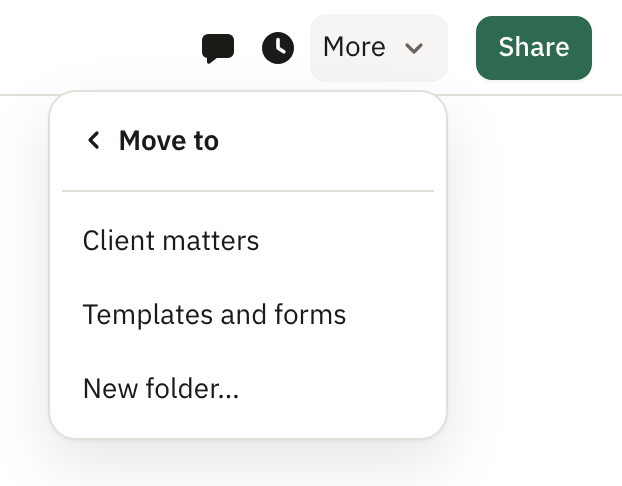
Drag a document from the list onto a folder in the sidebar, or drag it in the document panel (or use ⋯ beside it there), or choose Move to in the row menu or in More inside the document.
Didn’t answer your question? Email support@pagyra.com.